
FIELD GUIDE / MSG FILES
How to open an MSG file on Mac, iPhone or iPad
Open Outlook MSG email files locally on Mac, iPhone and iPad, inspect attachments, and avoid uploading private correspondence to a converter.
Install MailFolio, open the MSG file from Finder or the iOS Files app, and MailFolio will decode the message and its attachments on your device.
FILE FORMAT GUIDE · MAILFOLIO
Try an MSG before you use your own email
Download a fictional MSG message and compare its actual PDF summary. The example is in English and includes one harmless text attachment.
Three unique successful imports are free. Attachment preview, saving and PDF export require Pro. The PDF is a searchable text summary, not a reproduction of the original Outlook layout; attachments remain separate.
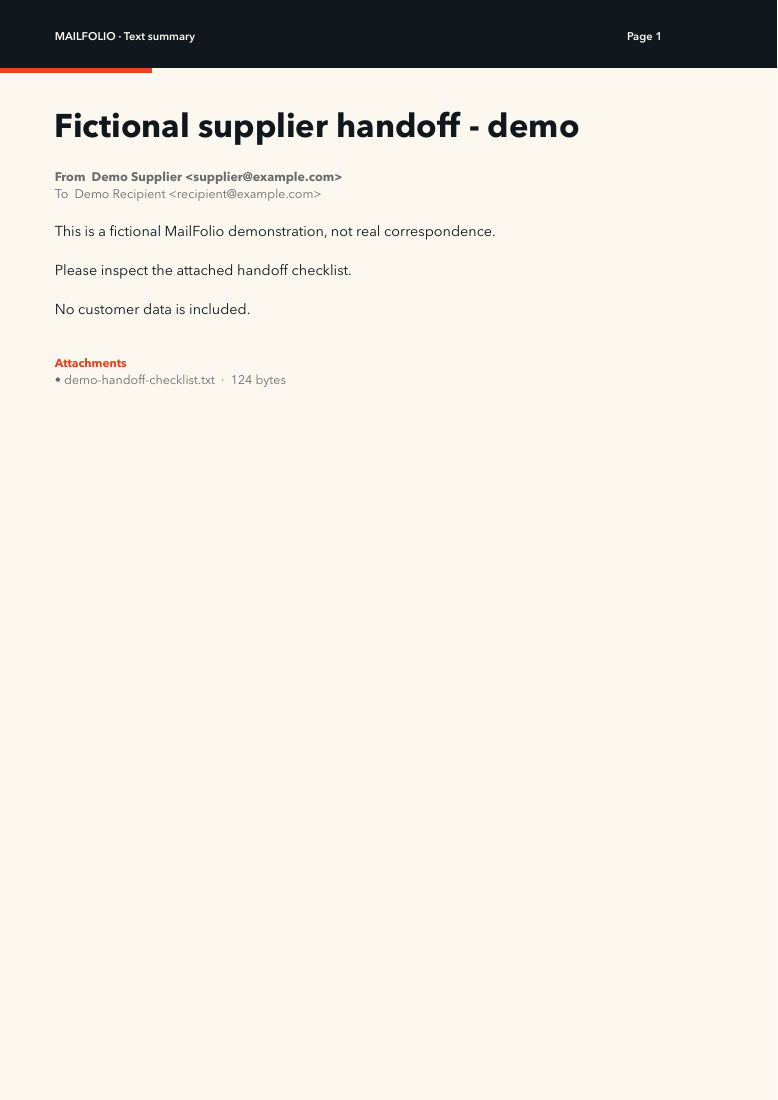
Check the message, PDF and attachment separately
Read the walkthrough transcript · Download the 24-second video
- Open the example MSG. The subject should be “Fictional supplier handoff - demo” and the sender
supplier@example.com. - Confirm that the message lists one attachment,
demo-handoff-checklist.txt. With Pro, preview it and save a separate copy. - With Pro, export the message PDF. Compare its sender, recipient, subject and body with the message.
- Keep the MSG, PDF summary and saved attachment together. The PDF summary does not embed the original attachment or reproduce Outlook’s full layout.
The production parser extracted the sample attachment byte for byte unchanged in our 9 September 2026 check. If an attachment is missing or the body differs in your file, keep the original and request the source attachment from the sender.
THE LOCAL ROUTE
Four steps. No upload.
- 01
Install MailFolio
Download MailFolio from the App Store. The first three successful file imports are free, so you can test your own MSG file before buying Pro.
- 02
Choose the MSG file
On Mac, Control-click the file in Finder and choose Open With → MailFolio. On iPhone or iPad, save it to Files, tap Share, then choose MailFolio.
- 03
Read and inspect
Review the sender, recipients, date, message body, transport headers, embedded messages and attachments. Remote content and tracking pixels stay blocked.
- 04
Save what you need
With Pro, preview or save attachments and export the message as searchable PDF, portable EML, self-contained HTML or plain text.
WHAT TO EXPECT
What MailFolio reads from MSG
- Outlook HTML and plain-text bodies
- Compressed RTF message bodies
- Headers, dates and recipients
- Regular and embedded attachments
TRY YOUR OWN FILE
Three successful imports are free.
No account and no subscription. Pro is one purchase shared across iPhone, iPad and Mac. Check your local App Store for the current price.